Prerequisite
- Google Analytics 360 Account
- Google Cloud Project with Billing Enabled
- User that will setup Export need to have following permissions
- Editor Access in Google Analytics
- Owner Access on Google Cloud Project
- Google Cloud Project ID. This will be used during setup Process
- For one GA (Google Analytics) Property, export can be setup for only one View at a time
- BigQuery API is enabled in Google Cloud Project
Setup Process
- Log into Google Analytics (analytics.google.com)
- Select GA (Google Analytics) view for which export need to be setup. View can be selected by clicking small arrow as shown in below screenshot

- After Selecting View. Go to Admin tab in GA (shown below)
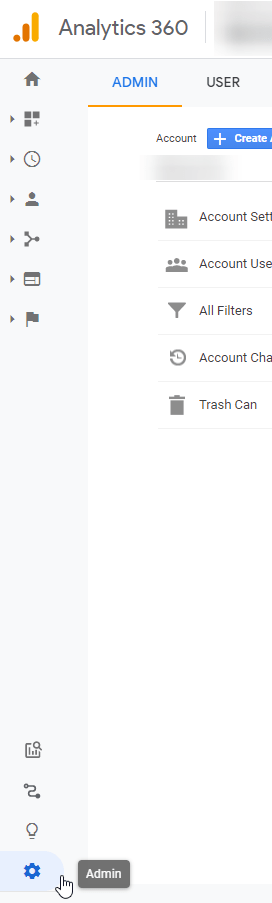
- Go to All Products in Admin Tab

- Select BigQuery under “All Products” to setup export. Following is needed to setup export
- Google Cloud Project ID
- Google Analytics View for which Export needs to be setup
- Email Address that is available in GA. This will be used to send export completion notifications
- Streaming Data Export frequency (batch mode or continuous export)
Note: Setup process with not ask for target BigQuery dataset. It is automatically created once export setup is completed. Dataset will have same name as GA View ID.

Export Validation
Once setup is completed we should be able to see following
- Dataset should appear in BigQuery with ID same as GA view
- In GA (Admin -> All Product), we should be able to see green check mark for BigQuery. As seen in above screenshot
- Table and View may take some time to appear in BigQuery
- Data Export can take up to 24 hours
Reference: Set up BigQuery Export – Analytics Help (google.com)

 Simplyfies