Summary
In this blog post, we will go through steps to hide power bi measure from certain security roles.
Scenario
- Finance Department should be able to see all measures
- Sales Department should be able to see all measures except “Sum Profit”
Required Tools:
- Power BI Desktop
- Tabular Editor (https://github.com/TabularEditor/TabularEditor/releases/tag/2.16.7)
1. Create Empty Power BI Table
Create an Empty Power BI table and name it “Finance Security Filter”. As Object Level Security can only be applied to Tables and Column. So we are creating a new empty power bi table.
It will be used in combination with Power BI Roles to Hide Power BI Measure for people that belong to “Sales” Security Role.

Use the following expression for this new table.
Finance Security Filter = FILTER({blank()},FALSE())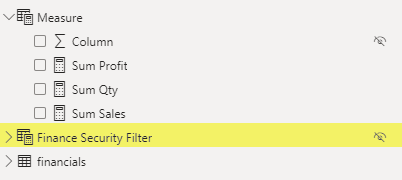
2. Create Power BI Security Role
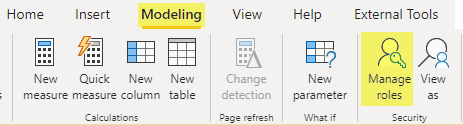
Create two new Power BI Security Roles and Name these “Sales” and “Finance”. We will use Tabular Editor in step 5 to Disable Sales group access from “Finance Security Filter” table that we created in Step 1.

3. Create New Measure with Table Filter
Create a new measure using the following expression. In this scenario, we are creating “Sum Profit” Measure.

Sum Profit =
//Variable to Create Dependency on Empty PBI Table
var fnsecurity = 'Finance Security Filter'
//Sum of Profit
Return sum(financials[Profit])
Here we have created a new variable just to create dependency of this measure on Empty Power BI table “Finance Security Filter”
4. Open and Setup Tabular Editor
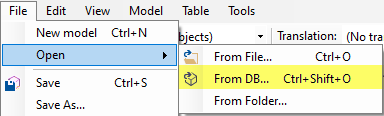
Download and Install Tabular Editor Free Edition and Connect with Powerbi Desktop Model. After a successful connection, we will be able to see Security Roles and Model Tables.



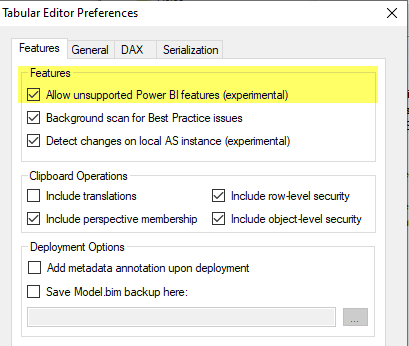
Update Preferences to Allow Unsupported Power BI Feature. Enabling this will allow us to see Object Level Security settings. Restart Tabular Editor after this.

5. HIDE FILTER TABLE FOR SALES Role
Select “Finance Security Filter” Table and Remove Sales Role Access from it using Properties.
Go to Object Level Security, Select Sales Role, and set the value to None against it. Setting this property will remove Sales Role access from “Finance Security Filter” table and any Measure that is using this table. i.e. “Sum Profit” measure.
Save Changes (ctrl + s) in Tabular Editor after this update.

6. Test New Security Setup
Just to summarize, we created “Sum Profit” measure with dependency on “Finance Security Filter” table. Besides this, we also removed “Sales” Role access from this table using Tabular Editor. Now let us test if the new configuration is working as intended or not.
Go to power bi desktop security and select view as “Sales” Role.

Sum Profit Measure is no longer visible to anyone that belongs to Sales Role.
We have successfully hidden power bi measure.
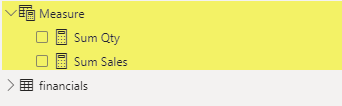
Switching Role back to Finance with Show all the measures again.


 Simplyfies
One thought on “Hide Power BI Measure”
Comments are closed.