By default jupyter start up folder is set to user profile folder. This guide provide steps is to change Jupyter notebook start up folder. When Jupyter notebook or lab is launched from Anacondas.
Anacondas Distribution (Windows)
1- Launch anacondas navigator
2- Go to environments and select required environment
3- Open terminal as shown in below screenshot
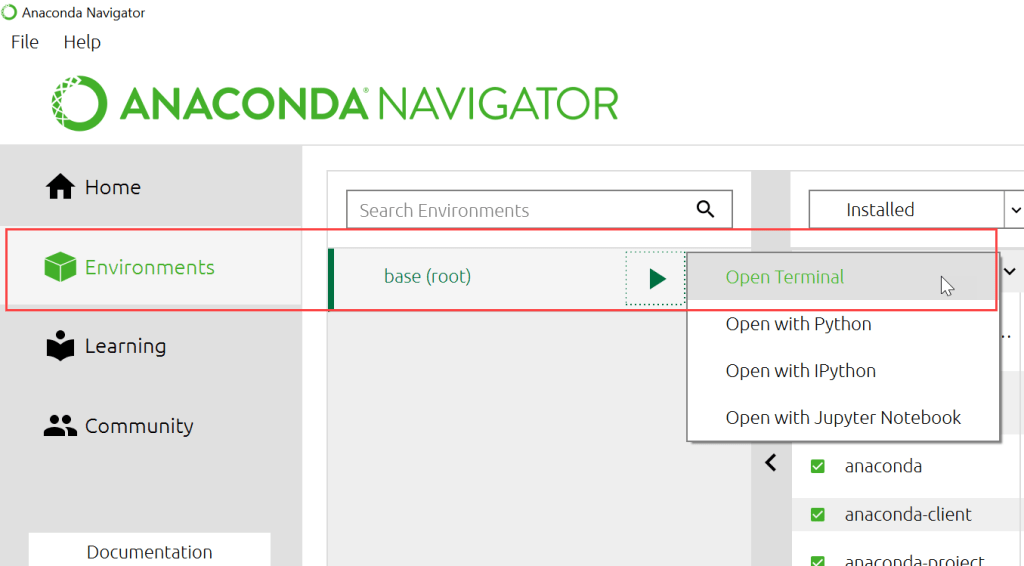
4- Generate configuration files for jupyter and jupyter-lab using following commands in terminal window
5- Following command is to create configuration file for jupyter notebook
jupyter notebook --generate-config6- Following command is to create configuration file for jupyter-lab
jupyter-lab --generate-config7- Configuration path is shown in cmd once configuration file is created as seen below

8- Go to configuration directory, using path from cmd
9- Update *_config files to add new folder path

Jupyter notebook startup folder
1- Open jupyter_notebook_config.py in notepad
2- Find “c.NotebookApp.notebook_dir” in file
3- Remove “#” to uncomment this config entry
4- Add required startup directory path in single quotes as shown below
5- Save and close file
6- Jupyter notebook should now open in updated path
#from
#c.NotebookApp.notebook_dir = ''
#to
c.NotebookApp.notebook_dir = 'D:/path'
Jupyter lab startup folder
1- Open jupyter_lab_config.py in notepad
2- Find “c.ServerApp.notebook_dir” in file
3- Remove “#” to uncomment this config entry
4- Add required startup directory path in single quotes as shown below
5- Save and close file
6- Jupyter lab should now open in updated path
#from
#c.ServerApp.notebook_dir = ''
#to
c.ServerApp.notebook_dir = 'D:/path'
Related Links
List file extension in windows
SQL proxy as windows task
Test sftp connection
 Simplyfies