Get Azure Key Vault secrets in Fabric pipeline

In this comprehensive guide, we delve into the integration of Fabric Data Factory with Azure Key Vault, emphasizing the streamlined access to Key Vault secrets using service principal authentication.

This blog post provides a detailed walkthrough on configuring web activity with service principal authentication, ensuring secure access to sensitive information stored in Key Vault.

This step-by-step tutorial includes setting up a fabric data factory connection and configuring Web Activity in Azure Data Factory for secure communication with Azure key vault. By prioritizing Azure Data Factory and Key Vault integration, this post aims to equip readers with the knowledge to fortify their cloud data management and security frameworks effectively.

Prerequisites

To get started, you must complete the following prerequisites:

Add a Web activity to a pipeline with UI

To use a Web activity in a pipeline, complete the following steps:

Create the activity

  1. Create a new pipeline in your workspace.
  2. Search for Web in the pipeline Activities pane, and select it to add it to the pipeline canvas.
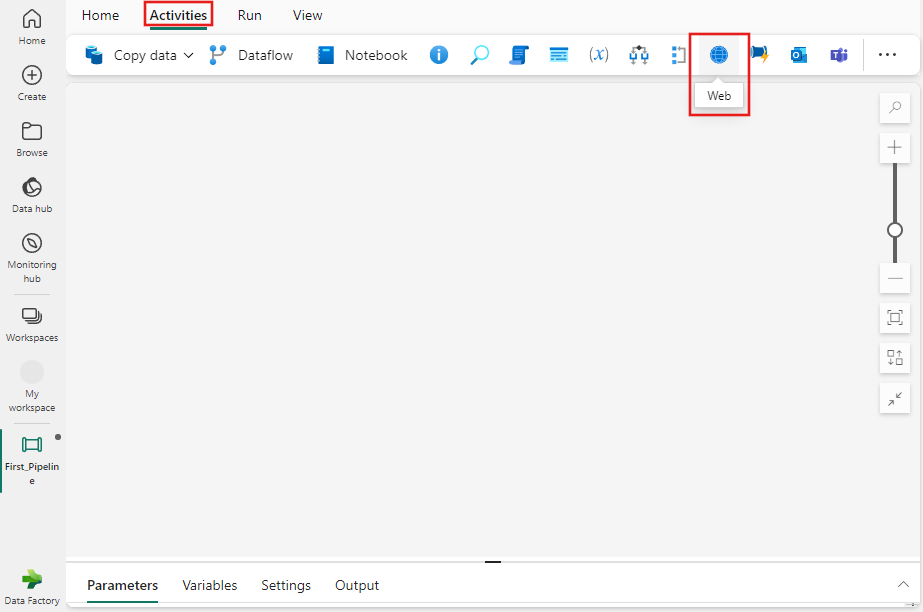

Web activity settings

  • Select the Settings tab, select an existing connection from the Connection dropdown, or use the + New button to create a new connection, and specify its configuration details.
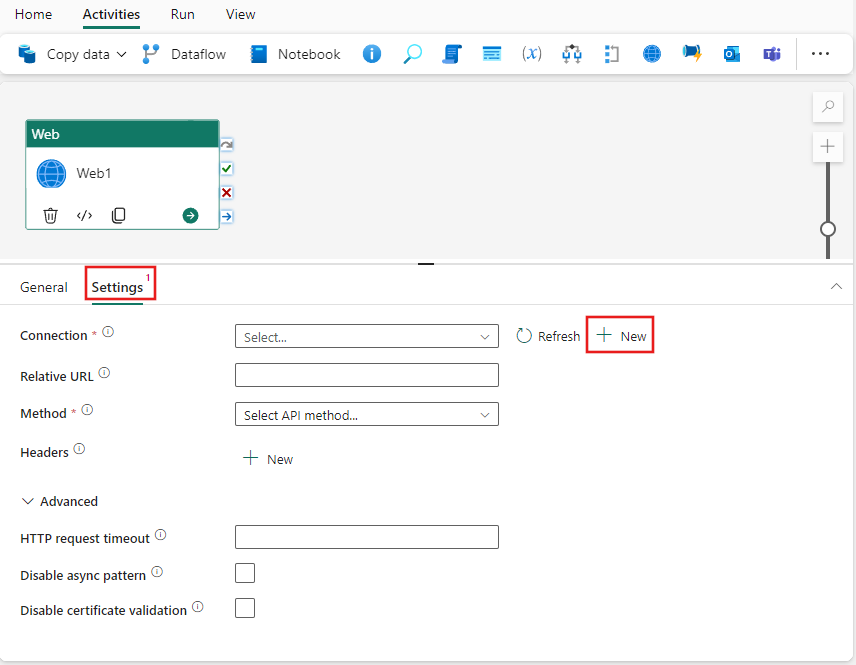
  • When you choose + New to create a new connection, you see the connection creation dialog where you can provide the base URL and credentials to connect.
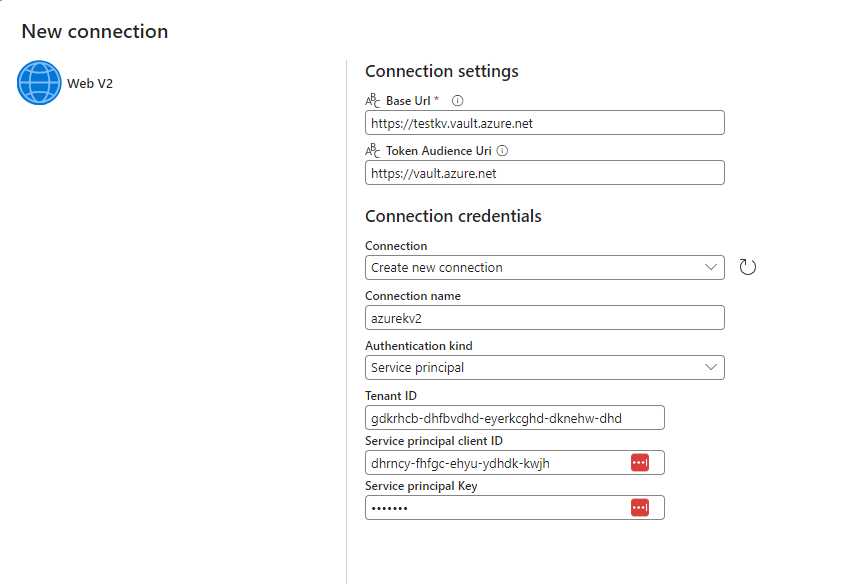
  • Save connection and add relative secret path and method in web activity settings

Save and run or schedule the pipeline

Synapse Link Stuck at Fetching App

In this blog post, we will address a common issue with Synapse Link, where it gets stuck at “Fetching App.” We will provide a step-by-step guide on how to troubleshoot and resolve this problem.

Issue:

Synapse Link Stuck at Fetching App

Fetching App

Troubleshoot

If you encounter the issue of Synapse Link being stuck at “Fetching App,” follow these troubleshooting steps:

  1. Set Up a New Link from make.powerapps.com:
    • Head to make.powerapps.com.
    • Create new synapse link
    • Select your Synapse workspace and storage
  2. Select Required Tables for Syncing:
    • Choose the tables that you want to sync.
  3. Enable Developer Tools in Your Browser:
    • Press F12 to open the developer tools.
    • Navigate to the “Network” tab.
  4. Look for a 404 Error:
    • Select create synapse link after selecting tables
    • While in the network tab, look for a 404 error that matches the following description or states “app not found.” This error indicates that Synapse Link is unable to set up a Service Principal in Azure.

404 error when trying a GET request https://graph.windows.net/myorganization/servicePrincipalsByAppId/12345678-77a4-5874-2365-12345678c89b/objectId?api-version=1.6

Resolution

To resolve this issue, follow these steps

  1. Launch PowerShell as Administrator with Azure Installed:
    • If you don’t have Azure PowerShell installed, you can follow the installation steps here.
  2. Connect to the Tenant:
    • Run the following command: Connect-AzAccount.
    • Ensure you log in with a user who has privileges to create a Service Principal in the tenant, such as a tenant admin or global administrator.
  3. Add the Principal:
    • Run this command: New-AzADServicePrincipal -ApplicationId ‘12345678-77a4-5874-2365-12345678c89b’.
  4. Try Setting up Synapse Link Again:
    • You should now attempt to set up Synapse Link again. Ideally, this should work without any issues.

By following these steps, you should be able to resolve the “Synapse Link Stuck at Fetching App” issue. If you encounter any further issues, don’t hesitate to seek additional support from your Azure administrators or support team.

Reference: Synapse Link Delta Lake Configuration

Related Article:

Synapse Invalid Object Name