Change Integration Runtime Key

This blog post provides instructions for changing the key for a self-hosted integration runtime, applicable when connecting an existing client to a new Azure Data Factory or Synapse Analytics. The process begins by opening PowerShell as an Administrator and setting the execution policy to unrestricted. After pressing enter, navigate to the Microsoft Integration Runtime directory and execute the RegisterIntegrationRuntime.ps1 script with the new integration runtime key. Upon successful registration, verify the integration runtime status in the Data Factory. To complete the process, restore the execution policy to restricted and exit PowerShell. This procedure ensures the client is properly linked to the new data management service.

  1. Open PowerShell as an Administrator.
  2. Type Set-ExecutionPolicy Unrestricted.
  3. Press Enter.
  4. Go to “C:\Program Files\Microsoft Integration Runtime\3.0\PowerShellScript\RegisterIntegrationRuntime.ps1”
  5. Execute command “.\RegisterIntegrationRuntime.ps1 – gatewayKey <Key from new IR>". It should execute with status “Integration Runtime registration is successful!”
  6. Validate Integration runtime status in Data factory
  7. Once finished, type Set-ExecutionPolicy Restricted.
  8. Press Enter.
  9. Type Exit.

Synapse Link Spark Pool Issue

Microsoft Azure Synapse Link is a powerful tool that allows you to seamlessly integrate your Azure Synapse Analytics workspace with dataverse. However, like any technology, it can encounter issues during configuration and usage. In this blog post, we’ll address a common problem that users encounter when setting up Synapse Link: tables going into an initial sync and eventually failing, with Spark applications getting canceled. We’ll discuss how to troubleshoot this issue and provide a resolution to get your Synapse Link up and running smoothly.

Problem Statement

After configuring Synapse Link, you may notice that your tables are going through an initial synchronization process, but then they fail. Furthermore, when you check the Synapse monitoring, Spark applications are shown as being in a canceled state, and no logs are created for these jobs. This can be frustrating, but there are reasons behind this issue and steps to resolve it.

Synapse Link Error
Canceled Spark Application

Troubleshoot:

The primary reason for tables failing during the initial sync and Spark applications getting canceled is related to the available resources in your Synapse workspace. Here are some troubleshooting steps to identify the problem

  1. Inadequate Cores: Your Synapse workspace might not have the required number of cores available to process Synapse Link tables effectively. To find out if this is the issue, you can review your Azure Synapse Analytics available cores.
  2. Spark Pool Minimum Requirement: The minimum requirements for a Spark pool in Synapse Link can also lead to this problem. You should check whether your Spark pool configuration meets these requirements.
Minimum requirement for spark pool

Resolution

To resolve the issue and ensure a smooth operation of Synapse Link, you need to make sure that your Synapse workspace has the necessary resources available. Here’s how you can do it:

  1. Spark Cluster Nodes: Synapse Link needs a Spark cluster with 5-10 Spark nodes. If the size of one Spark node is (4 vCores / 32 GB), then your workspace should have 40 total vCores available to process Synapse Link tables effectively. Ensure that your workspace meets this requirement.
  2. Increase Spark Cores: If your Synapse environment falls short of the required number of cores, you can increase the number of Spark cores. To do this, open a support ticket with Microsoft (MSFT) and request an increase in the Spark cores for your environment.

Reference

For more information and detailed recommendations on Spark pool configuration for Azure Synapse Link, you can refer to the official Microsoft documentation here.

Related Synapse Link Issues

Synapse Link Filed to Initialize Storage

Synapse Link Fetching App

Synapse Link Partition Table Issue

Synapse Link failed to initialize storage

Azure Synapse Analytics is a powerful tool for big data and analytics workloads, but like any complex system, it can encounter issues that need troubleshooting. In this blog post, we will discuss a common problem where Synapse Link Delta Tables are not being created in a Synapse Workspace and how to resolve it. We’ll walk you through the symptoms and provide a step-by-step resolution to get your workflow back on track.

Symptoms

  1. Job Status is in a Failed State in Power Platform: When you’re trying to create Delta Tables in your Synapse Workspace, one of the first symptoms you might encounter is job failures in Power Platform. This is a clear indication that something is not working as expected.
  2. Successful Execution of Spark Application in Synapse Workspace: Oddly, the Spark application itself may run without issues within the Synapse Workspace. This can make the problem seem even more mysterious.
  3. Errors in Spark Application Logs: While the Spark application itself may run successfully, the logs can reveal errors or issues that are preventing the creation of Delta Tables.

Look for the following in the spark application Logs:

ERROR AzureStorageEmitter [SparkObservabilityManager-0]: failed to initialize
com.microsoft.azure.storage.StorageException: Server failed to authenticate the request. Make sure the value of Authorization header is formed correctly including the signature.

Screenshots:

Synapse Link for dataverse
Spark application logs

Resolution

To resolve the issue of Delta Tables not being created in your Synapse Workspace, follow these steps:

  1. Go to Synapse Studio: Open Synapse Studio, which is your gateway to managing and monitoring your Synapse Analytics workloads.
  2. Open Linked Services: Under the “Manage” section in Synapse Studio, find and open “Linked Services.” This is where you can configure the connections and settings required for various services and resources in your Synapse Workspace.
  3. Test “Azure Data Lake Storage Gen2” Linked Service: Look for the “Azure Data Lake Storage Gen2” linked service, which is used by both Synapse Link and Synapse Studio. This is a critical component, and any issues with this connection can disrupt your Delta Table creation process.
  4. Ensure Successful Connection: Test the connection to the “Azure Data Lake Storage Gen2” linked service. It should be able to connect to your storage successfully. If the test fails, you need to correct the linked service connection. This might involve verifying your access credentials, permissions, or network configurations.
  5. Verify Synapse Link: After successfully establishing a connection with the Azure Data Lake Storage Gen2, verify that your Synapse Link is correctly set up and configured. This link should now be able to create Delta Tables in your Synapse Studio Data Lake after resolving any issues with the linked service.

By following these steps, you should be able to identify and resolve the issues preventing the creation of Delta Tables in your Azure Synapse Workspace. Ensuring that your connections and configurations are correct is crucial for the smooth operation of your analytics workflows.

Conclusion

Troubleshooting issues like Delta Table creation in Azure Synapse Workspace can be a challenging task, but with the right approach, you can quickly identify and resolve the problem. By checking and testing your linked services and verifying your Synapse Link configuration, you can get your data workflows back on track and make the most of Azure Synapse Analytics for your big data and analytics needs. If you encounter further issues, don’t hesitate to reach out to Azure support for additional assistance.

Other Synapse link issues:

Synapse link stuck at fetching app

Reference: Configure Synapse Link for Dataverse

Synapse Link Stuck at Fetching App

In this blog post, we will address a common issue with Synapse Link, where it gets stuck at “Fetching App.” We will provide a step-by-step guide on how to troubleshoot and resolve this problem.

Issue:

Synapse Link Stuck at Fetching App

Fetching App

Troubleshoot

If you encounter the issue of Synapse Link being stuck at “Fetching App,” follow these troubleshooting steps:

  1. Set Up a New Link from make.powerapps.com:
    • Head to make.powerapps.com.
    • Create new synapse link
    • Select your Synapse workspace and storage
  2. Select Required Tables for Syncing:
    • Choose the tables that you want to sync.
  3. Enable Developer Tools in Your Browser:
    • Press F12 to open the developer tools.
    • Navigate to the “Network” tab.
  4. Look for a 404 Error:
    • Select create synapse link after selecting tables
    • While in the network tab, look for a 404 error that matches the following description or states “app not found.” This error indicates that Synapse Link is unable to set up a Service Principal in Azure.

404 error when trying a GET request https://graph.windows.net/myorganization/servicePrincipalsByAppId/12345678-77a4-5874-2365-12345678c89b/objectId?api-version=1.6

Resolution

To resolve this issue, follow these steps

  1. Launch PowerShell as Administrator with Azure Installed:
    • If you don’t have Azure PowerShell installed, you can follow the installation steps here.
  2. Connect to the Tenant:
    • Run the following command: Connect-AzAccount.
    • Ensure you log in with a user who has privileges to create a Service Principal in the tenant, such as a tenant admin or global administrator.
  3. Add the Principal:
    • Run this command: New-AzADServicePrincipal -ApplicationId ‘12345678-77a4-5874-2365-12345678c89b’.
  4. Try Setting up Synapse Link Again:
    • You should now attempt to set up Synapse Link again. Ideally, this should work without any issues.

By following these steps, you should be able to resolve the “Synapse Link Stuck at Fetching App” issue. If you encounter any further issues, don’t hesitate to seek additional support from your Azure administrators or support team.

Reference: Synapse Link Delta Lake Configuration

Related Article:

Synapse Invalid Object Name

Work with Binary Data in Synapse Lookup Activity

Introduction:

When working with binary data in Synapse Lookup activity, you may encounter an error message stating that the data type ByteArray is not supported. This limitation can be frustrating, but there is a simple workaround to handle binary data effectively in the Lookup activity. In this blog post, we will explore how to convert ByteArray to NVARCHAR within the Lookup activity and then convert it back to ByteArray for further processing.

Summary:

By default, the Synapse Lookup activity does not support the ByteArray data type, which can lead to errors when working with binary data. However, you can overcome this limitation by converting the ByteArray data to NVARCHAR within the Lookup activity. After performing the lookup, you can convert the NVARCHAR data back to ByteArray for subsequent processing.

Converting ByteArray to NVARCHAR: To convert ByteArray to NVARCHAR within the Lookup activity, you can use the following script:

CONVERT(NVARCHAR(MAX), CONVERT(VARBINARY(MAX), [timestamp]), 1) AS varchartstamp

This script converts the ByteArray column, such as [timestamp], to NVARCHAR using the CONVERT function. The result is stored in the variable varchartstamp.

Converting NVARCHAR back to ByteArray: To convert NVARCHAR back to ByteArray after the Lookup activity, you can use the following script:

CONVERT(timestamp, CONVERT(varBINARY(MAX), @{activity('Lookup1').output.firstRow.varchartstamp}, 2))

This script converts the NVARCHAR variable, varchartstamp, back to ByteArray using the CONVERT function. The result is a ByteArray that can be used for further processing.

Conclusion:

Working with binary data in Synapse Lookup activity can be challenging due to the lack of direct support for the ByteArray data type. However, by leveraging the conversion functions within the Lookup activity, you can easily convert ByteArray to NVARCHAR and vice versa. This enables seamless integration of binary data into your Synapse pipelines, opening up a wide range of possibilities for data processing and transformation.

By implementing these conversion scripts, you can effectively handle binary data in Synapse Lookup activity and achieve your data integration goals. With this workaround, you can overcome the limitations and take full advantage of the power of Synapse Analytics.

Note: Ensure that the appropriate conversions and validations are performed based on your specific requirements and data scenarios

Failed to List Resources – Synapse

Error “Failed to list resources” can occur while adding role assignment in Synapse workspace. This error can happen if admin assigning permission is a guest account.

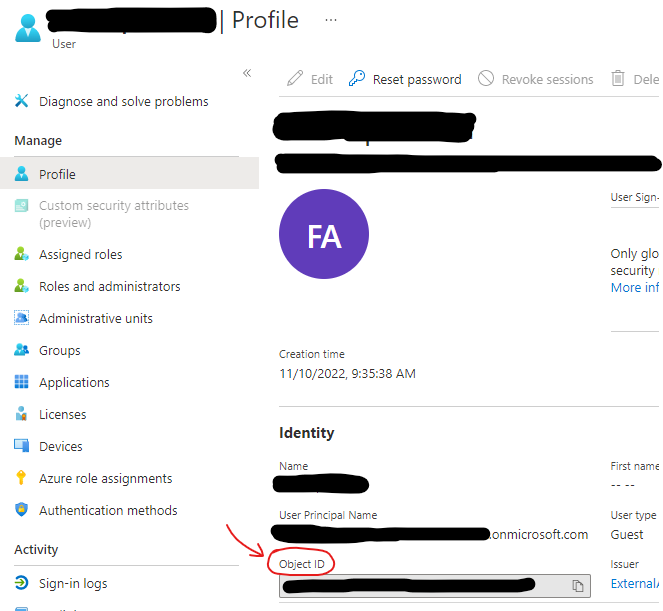
User object id can be used to assign permission instead of AD principal name. This post go through steps to get user profile id as well.

Error: Failed to list resources

This error can occur while trying to add role assignment in synapse workspace.

Failed to list resource
Failed to list resource (Synapse Workspace)

Resolution

Object id can be used to assign permission incase “failed to list resources” error occurs, while assigning permissions using AD principal name.

Retrieve AD user object id using one of the following methods

Method 1

  1. Open Azure CLI
  2. Run following cli command to get object ID
  3. Go to “synapse workspace -> Manage -> Access Control” and use object id to add role assignment
--azure cli command
az ad user show --id user@azurecloud.com

Response

cli command response
Azure CLI

Method 2

  1. In Azure cloud console, go to resource group then “Access control (IAM)”
  2. Open role assignment
  3. Find account that need synapse workspace permissions
  4. Click on user profile to view object id
  5. Go to “synapse workspace -> Manage -> Access Control” and use object id to add role assignment
Access Control
Access Control
User profile
User Profile

Related Links