Jupyter notebook start up folder

By default jupyter start up folder is set to user profile folder. This guide provide steps is to change Jupyter notebook start up folder. When Jupyter notebook or lab is launched from Anacondas.

Anacondas Distribution (Windows)

1- Launch anacondas navigator
2- Go to environments and select required environment
3- Open terminal as shown in below screenshot
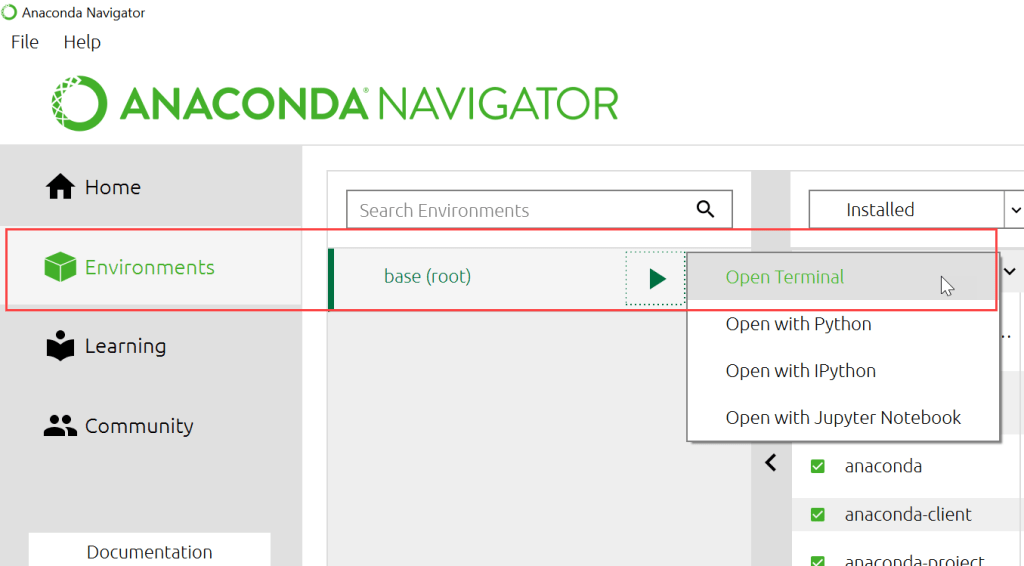
Anacondas Terminal

4- Generate configuration files for jupyter and jupyter-lab using following commands in terminal window
5- Following command is to create configuration file for jupyter notebook

jupyter notebook --generate-config

6- Following command is to create configuration file for jupyter-lab

jupyter-lab --generate-config

7- Configuration path is shown in cmd once configuration file is created as seen below

Config File

8- Go to configuration directory, using path from cmd
9- Update *_config files to add new folder path

Config Location

Jupyter notebook startup folder

1- Open jupyter_notebook_config.py in notepad
2- Find “c.NotebookApp.notebook_dir” in file
3- Remove “#” to uncomment this config entry
4- Add required startup directory path in single quotes as shown below
5- Save and close file
6- Jupyter notebook should now open in updated path

#from
#c.NotebookApp.notebook_dir = ''
#to
c.NotebookApp.notebook_dir = 'D:/path'

Jupyter lab startup folder

1- Open jupyter_lab_config.py in notepad
2- Find “c.ServerApp.notebook_dir” in file
3- Remove “#” to uncomment this config entry
4- Add required startup directory path in single quotes as shown below
5- Save and close file
6- Jupyter lab should now open in updated path

#from
#c.ServerApp.notebook_dir = ''
#to
c.ServerApp.notebook_dir = 'D:/path'

Related Links

List file extension in windows
SQL proxy as windows task
Test sftp connection
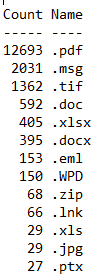
List of file extension in a directory

Question

How to get distinct list of file extension in a directory and sub directory in windows?

Option 1: List of file extension

  1. Open notepad and paste “script 1” into this file
  2. Save file with “.bat” extension
  3. Open cmd in the directory that has “.bat” file
  4. Run “script 2” to output distinct list of file extension into “output.txt” file.
  5. Replace “path” in script 2 with actual path you want to traverse
Script 1
@echo off

set target=%~1
if "%target%"=="" set target=%cd%

setlocal EnableDelayedExpansion

set LF=^


rem Previous two line left blank for LF to work

for /f "tokens=*" %%i in ('dir /b /s /a:-d "%target%"') do (
    set ext=%%~xi
    if "!ext!"=="" set ext=FileWithNoExtension
    echo !extlist! | find "!ext!:" > nul
    if not !ERRORLEVEL! == 0 set extlist=!extlist!!ext!:
)

echo %extlist::=!LF!%

endlocal
Script 2
batchfile "path" >output.txt

Option 2:

  1. Create new folder
  2. Open power shell in this folder (shift + right mouse click)
  3. Run following command to output distinct list of file extension in a directory in output.txt file
  4. Replace “\\path” with directory path that you want to traverse
Get-Childitem "\\path" -Recurse | WHERE { -NOT $_.PSIsContainer } | Group Extension -NoElement | Sort Count -Desc > output_ps.txt
output.txt

Other useful link

Windows file extensions
Jupyter start up folder
Highlight Excel rows

Rest API using Azure Functions

To create a REST API using Azure Functions, you will need to create a new Azure Functions app and set up HTTP triggers for the functions that you want to expose as API endpoints.

Here is a general outline of the steps you can follow to create a REST API using Azure Functions:

  1. Sign in to the Azure portal and create a new Azure Functions app.
  2. In the Azure Functions app, create a new function. You can choose the HTTP trigger template to create a function that is triggered by an HTTP request.
  3. In the function’s code, specify the HTTP method (GET, POST, PUT, DELETE, etc.) that the function should respond to, and define the logic for handling the request and generating the response.
  4. Test the function by making HTTP requests to the function’s URL using a tool like Postman.
  5. Repeat steps 2-4 for each API endpoint that you want to create.
  6. To secure the API, you can use Azure AD authentication or a custom authentication solution like API keys.

Here is an example of how you can create a REST API using Azure Functions in Python and implement the GET, POST, DELETE, and PUT methods:

import logging
import azure.functions as func

def main(req: func.HttpRequest) -> func.HttpResponse:
    logging.info('Python HTTP trigger function processed a request.')

    if req.method == "GET":
        # Handle GET request
        name = req.params.get('name')
        if name:
            return func.HttpResponse(f"Hello {name}!")
        else:
            return func.HttpResponse(
                 "Please pass a name on the query string",
                 status_code=400
            )
    elif req.method == "POST":
        # Handle POST request
        try:
            req_body = req.get_json()
        except ValueError:
            return func.HttpResponse(
                 "Invalid request body",
                 status_code=400
            )
        else:
            name = req_body.get('name')
            if name:
                return func.HttpResponse(f"Hello {name}!")
            else:
                return func.HttpResponse(
                     "Please pass a name in the request body",
                     status_code=400
                )
    elif req.method == "DELETE":
        # Handle DELETE request
        return func.HttpResponse("Deleted successfully", status_code=200)
    elif req.method == "PUT":
        # Handle PUT request
        return func.HttpResponse("Updated successfully", status_code=200)
    else:
        return func.HttpResponse(
             "Invalid request method",
             status_code=405
        )

This function is an HTTP trigger that responds to GET, POST, DELETE, and PUT requests. The GET and POST methods expect a name parameter in the query string or request body, and return a greeting message with the name. The DELETE and PUT methods return a success message. If the name parameter is not provided, the GET and POST methods return an error message. If an invalid request method is used, the function returns an error message.

To test this function, you can use a tool like Postman to send HTTP requests to the function’s URL with the appropriate method. For example, to test the GET request, you can use the following URL:

https://your-function-app.azurewebsites.net/api?name=John

Replace your-function-app.azurewebsites.net with the actual URL of your Azure Functions app

Azure Function Python Developer Guide

New Power Platform User

You need to have System Administrator permission to create new power platform user.

Go to link to see steps to create new power platform environment
Go to link to see steps to identify power platform data center location

  • Log into admin.powerplatform.microsoft.com
  • Go to Environment from navigation bar on the left
  • Select desired environment from all available environment list
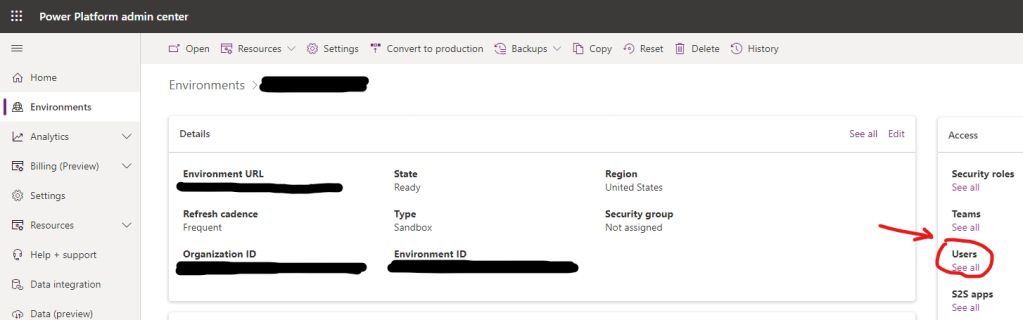
  • Select “see all” under users section, as shown below on the right side of screen
admin portal
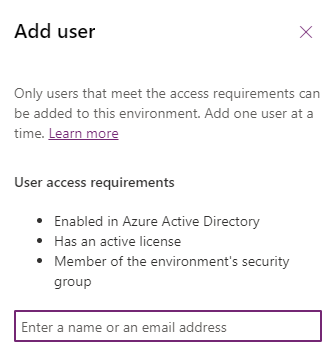
  • Click on “+Add user” from top bar to create new power platform user
  • This will open new user form on right side of screen
add user
  • Enter name or email address and click save
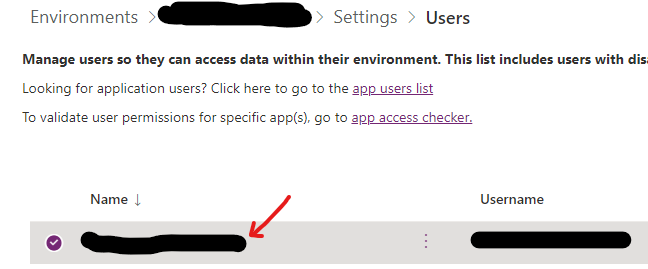
new power platform user
  • Select newly created user from list of all users
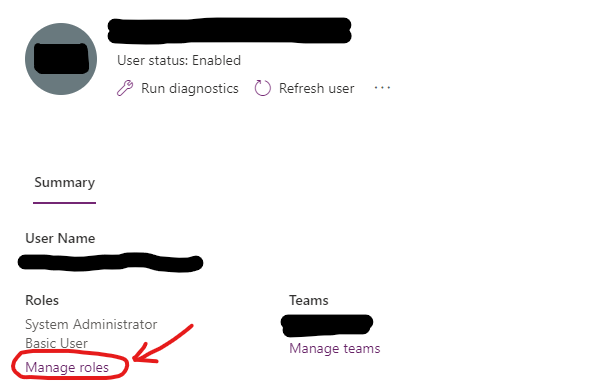
  • Under roles, go to manage role link
manage roles
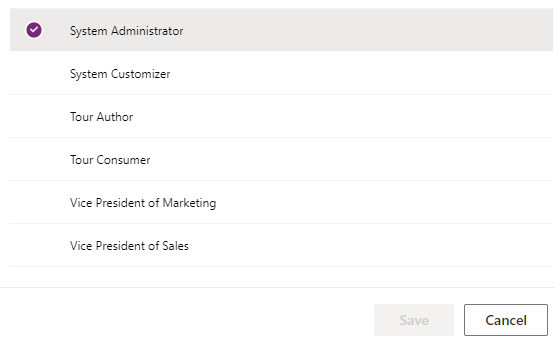
  • Select desired permission for the user and save the settings

Power App Environment Region

When we create new power app environment, we can select region from a drop down. We have option to select United States as region, but we can’t decide if this environment will be in East US or West US.

Power app environment data center location (i.e. East, West) is automatically decided by Microsoft based upon the tenant configuration.

This post go through steps to find out environment data center location e.g. East US or West US. This information is useful while setting up azure resources for synapse link for dataverse.

  • Go to link to find out steps to create new environment
  • Go to link find more information about synapse link for dataverse
  • Go to link to find steps to create new power platform user

Find power app environment region

  • Log into make.powerapps.com
  • Select environment from top right of the screen as shown below
Environment
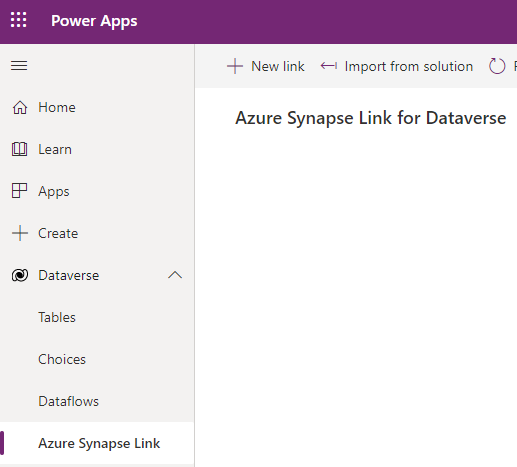
  • Go to Dataverse from navigation bar on the left side of screen
  • Select “Azure Synapse Link” option available under Dataverse
azure synapse link for dataverse
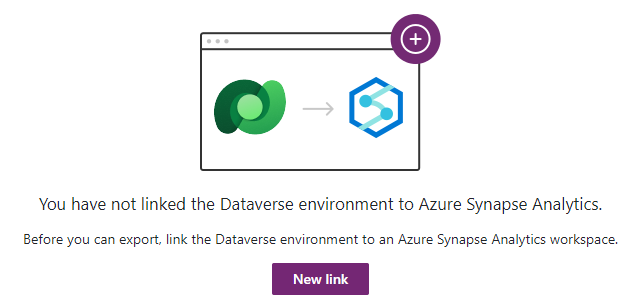
  • Click on new link button
  • This will take you to new synapse link setup page
  • We will not setup synapse link in this post, but we are here to find out region of power app environment
synapse link
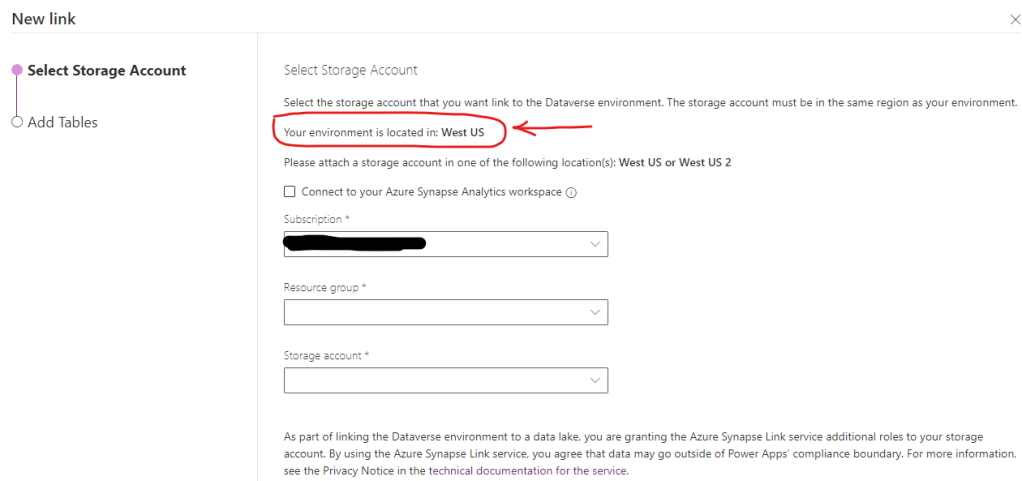
  • New link page show environment data center region. In this case Environment Region is United States and data center is West US, as shown below
power app environment region

New Power App Environment

You need to have power platform System Administrator permissions to create new power app environment.

Go to link to see steps to identify power app/platform data center location

power app environments
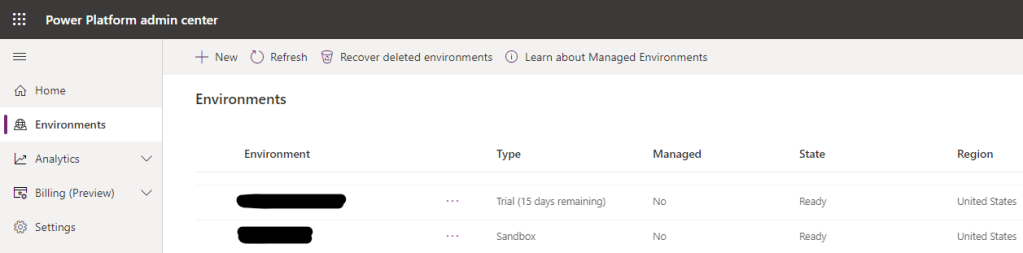
  • Click on “+ New” from bar on top of the screen
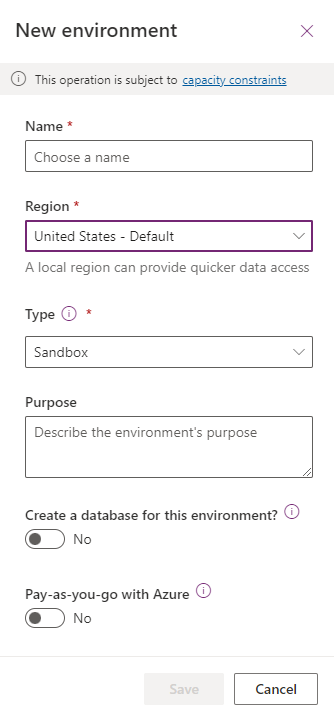
  • On new environment screen we can select environment name, region and Type
new environment
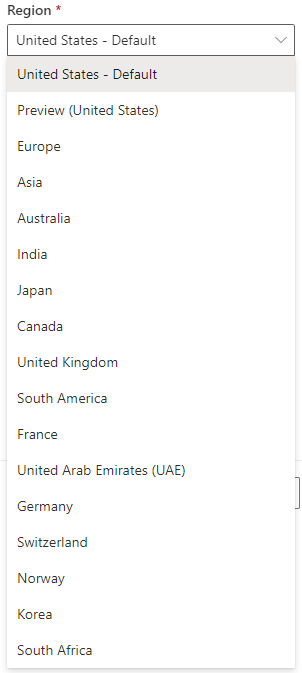
  • Following regions are available from region drop down
  • Click on save after providing environment details
  • Go to link to find steps to figure out power app environment region (data center location e.g. East US, West US)
power app environment regions

Developer Tab – Excel

Following below steps to enable developer tab from excel workbook options.

Steps to enable developer tab

  • Open Excel workbook
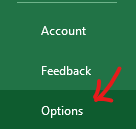
  • Go to File and then options on the bottom left of screen
file
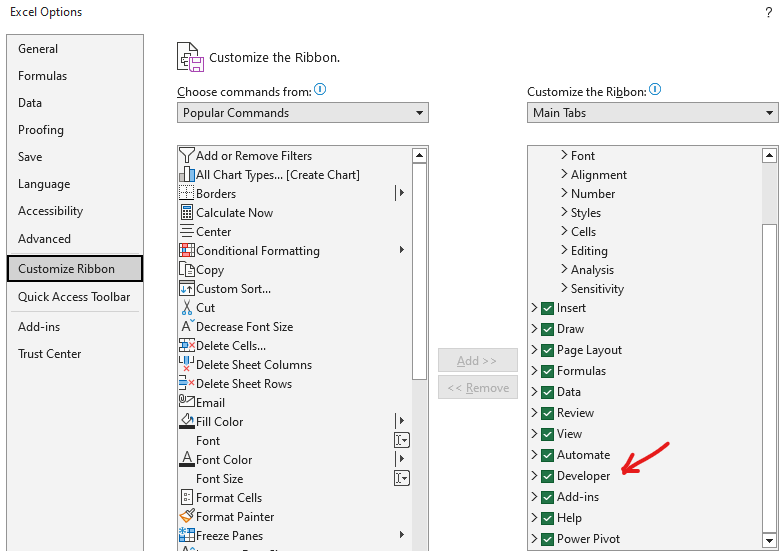
  • Select customize ribbon from excel options on the left
  • Select Developer from “customize the ribbon” list on the right (as shown below)
  • Close options by clicking on OK in bottom left
  • Developer tab should now be available in excel ribbon
Developer Tab
Developer Tab

Related Links

Excel Dynamic Row Highlight

Row Highlight – Excel

This post will explain steps to highlight selected row in excel. Row highlight will change dynamically based upon selection change.

This can be helpful during a meeting or discussion to keep audience focused on excel row in discussion. Find below steps to setup this functionality.

Steps: Row Highlight Configurations

  • Open excel file
  • Select cell range containing data
  • Go to conditional formatting and select new rule. This will open new formatting rule window.
Excel Row Highlight
Conditional Formatting

Following link to learn more about excel conditional formatting

  • Select “use a fornula to determine which cells to format”. As shown below.
  • Paste following formula in formula field
=ROW()=CELL("ROW")
  • Select format button right next to preview area
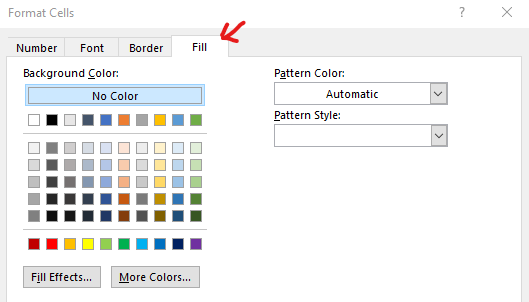
  • Go to fill and select background color for the selected row
Formatting Rule Window
Cell Fill
Cell Fill
  • Apply and close format cells and new formatting rule windows
  • Final conditional formatting setting will look like below
Final Format Settings
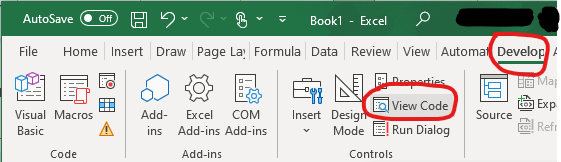
  • Next go to developer tab in excel as shown below and select “View Code”

Go to link to see steps to enable excel developer tab

Developer Tab
Excel Developer Tab
  • Select worksheet from drop down as shown below
  • This will open code block behind excel worksheet
Excel Code Editor
Excel Code Editor
  • Add following code in code editor (as show in screenshot below)
Private Sub Worksheet_SelectionChange(ByVal Target As Range)
Target.Calculate
End Sub
Worksheet updated code block
  • Close code editor and go back to excel sheet
  • Configurations are completed. Now we can test if “Highlight selected row” configurations are working as expected.
  • Select any row in the cell range that was selected for conditional formatting
    • Row highlighting should dynamically change as row selection changes
Row Highlight
Highlight Selected Row

Other posts from blog

Failed to List Resources – Synapse

Error “Failed to list resources” can occur while adding role assignment in Synapse workspace. This error can happen if admin assigning permission is a guest account.

User object id can be used to assign permission instead of AD principal name. This post go through steps to get user profile id as well.

Error: Failed to list resources

This error can occur while trying to add role assignment in synapse workspace.

Failed to list resource
Failed to list resource (Synapse Workspace)

Resolution

Object id can be used to assign permission incase “failed to list resources” error occurs, while assigning permissions using AD principal name.

Retrieve AD user object id using one of the following methods

Method 1

  1. Open Azure CLI
  2. Run following cli command to get object ID
  3. Go to “synapse workspace -> Manage -> Access Control” and use object id to add role assignment
--azure cli command
az ad user show --id user@azurecloud.com

Response

cli command response
Azure CLI

Method 2

  1. In Azure cloud console, go to resource group then “Access control (IAM)”
  2. Open role assignment
  3. Find account that need synapse workspace permissions
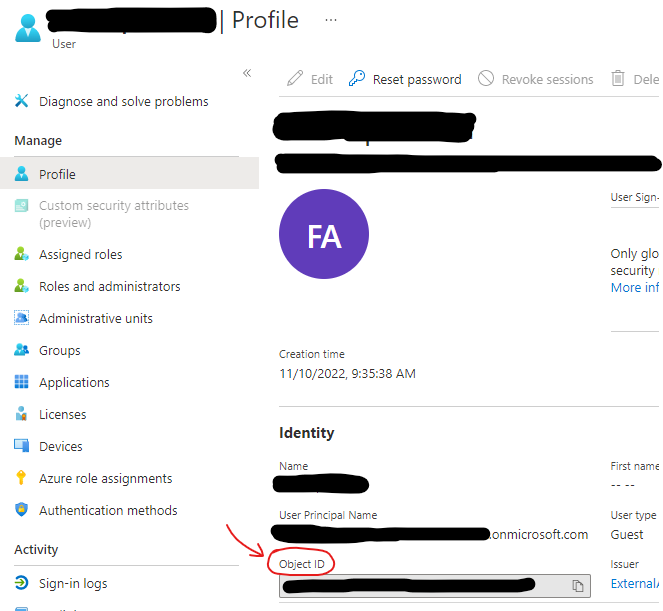
  4. Click on user profile to view object id
  5. Go to “synapse workspace -> Manage -> Access Control” and use object id to add role assignment
Access Control
Access Control
User profile
User Profile

Related Links

Synapse Analytics SQL Authentication

This Article will go through steps to enable Synapse Analytics SQL Authentication (local authentication) and create SQL User.

This article will also go through setup to run server less queries on on-demand pool using Synapse Analytics SQL User and Managed Identity.

Error

Following error can occur with Server less Query Execution and SQL Authentication, if permission are not set properly.

Cannot find the CREDENTIAL ‘https://test123.dfs.core.windows.net/devicetelemetry/////*/’, because it does not exist or you do not have permission

MSFT SQL Authorization Documentation Link

Synapse Analytics SQL Authentication Setup

Enable SQL Authentication

  • Log into portal.azure.com
  • Go to Synapse workspace
  • Open Azure Activity Directory from Settings
Azure Active Directory
  • Un-check “Support only Azure Active Directory Authentication for this workspace”
Enable Synapse Analytics SQL Authentication
Azure Active Directory Authentication

Create SQL Login and User

  • Log into SQL on-demand pool using SQL Server Management Studio. Use Admin Credentials for this step, as we will create SQL user in next step.
  • Create new SQL Login “DBUser”. Give this new user access on required data base using following script.
Database Login
Database Login
--use following script to create DB user and give reader permissions
USE database
GO

CREATE USER [DBUser] FOR LOGIN [DBUser] WITH DEFAULT_SCHEMA=[dbo]
GO

ALTER ROLE db_datareader ADD MEMBER [DBUser]
GO

SQL User Permission to Run Server less Query

Use following script to create Database scoped credentials and data source. This data source will be used by SQL user to run server less query. Behind the scene Managed identity is going to be used for storage location access.

Replace database name and Storage location with your required values. Also use admin user to run following scripts.

CREATE MASTER KEY ENCRYPTION BY PASSWORD = 'abcd1234'
GO

CREATE DATABASE SCOPED CREDENTIAL SynapseIdentity
WITH IDENTITY = 'Managed Identity';

GRANT REFERENCES ON DATABASE SCOPED CREDENTIAL::[SynapseIdentity] TO [DBUser];


CREATE EXTERNAL DATA SOURCE mysample
WITH (    LOCATION   = 'https://test.blob.core.windows.net/curatedzone/',
          CREDENTIAL = SynapseIdentity
)

SELECT TOP 10 * FROM OPENROWSET(BULK 'ACCOUNTENTRY/', DATA_SOURCE = 'mysample', FORMAT='DELTA') as rows;

Synapse Analytics SQL Authentication- Test Server Less Query

  • Log into synapse on demand pool with Synapse SQL User
  • Run Server less query using Data Source created in above step. Server less query should execute successfully.
SELECT TOP 10 * 
FROM OPENROWSET(BULK 'ACCOUNTENTRY/', DATA_SOURCE = 'mysample', FORMAT='DELTA') as rows;


Related Article: Disable Public Access on D365 Export to Data Lake